

API key authentication
API keys authenticate your requests to the Brevo API. Generate an API key from your account settings and include it in the api-key header for each request.
Building a new server-to-server integration? Consider machine-to-machine (M2M) instead — scoped, short-lived tokens instead of one all-access secret, with easy rotation.
Requirements
You need a Brevo account. Sign up if you don’t have one yet.
Generate an API key
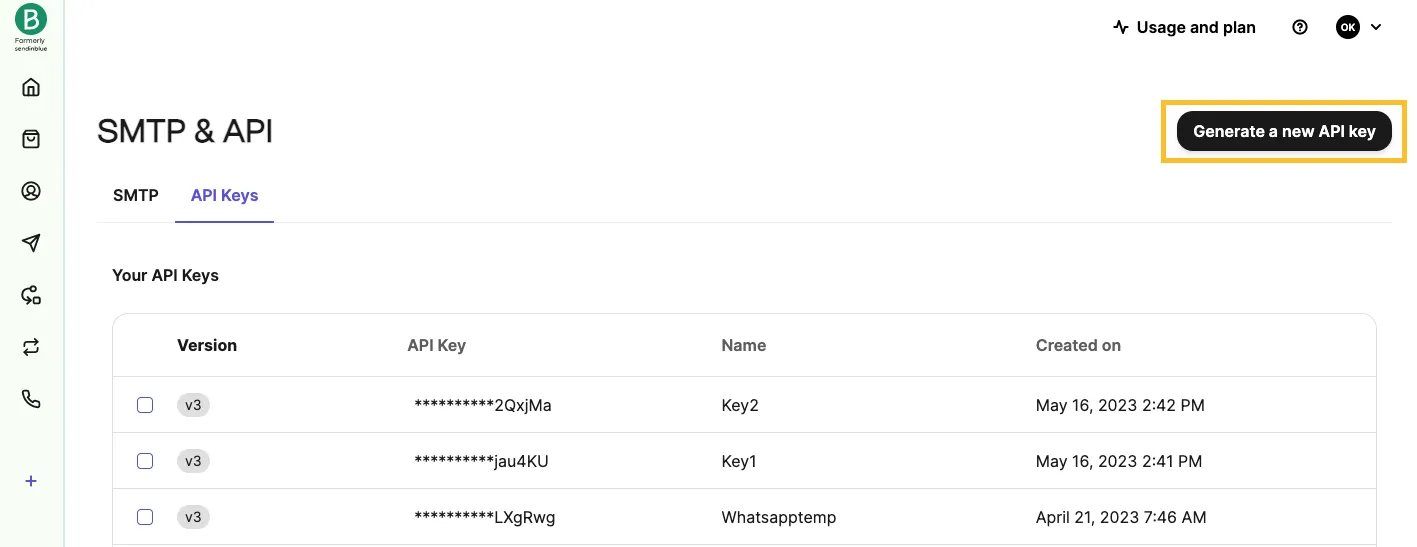
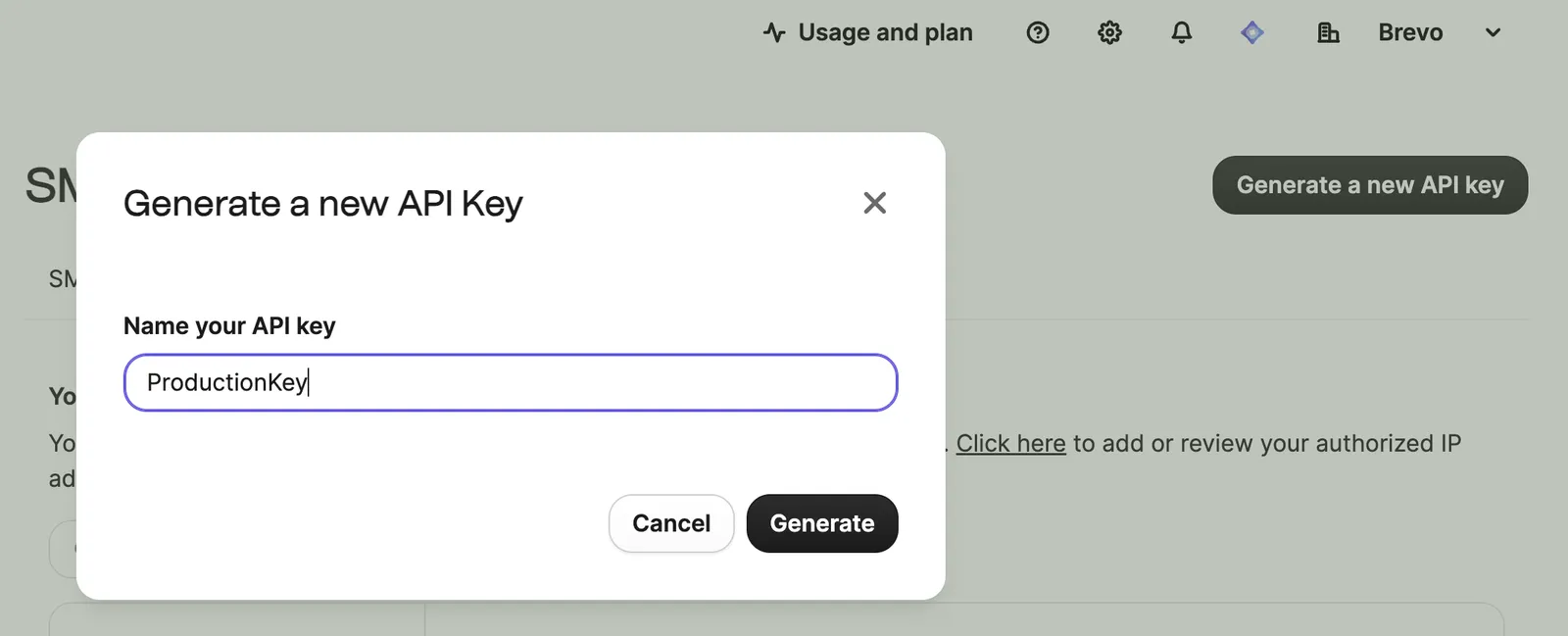
Name your API key
Enter a descriptive name for your API key (e.g., “Production API”, “Development API”).
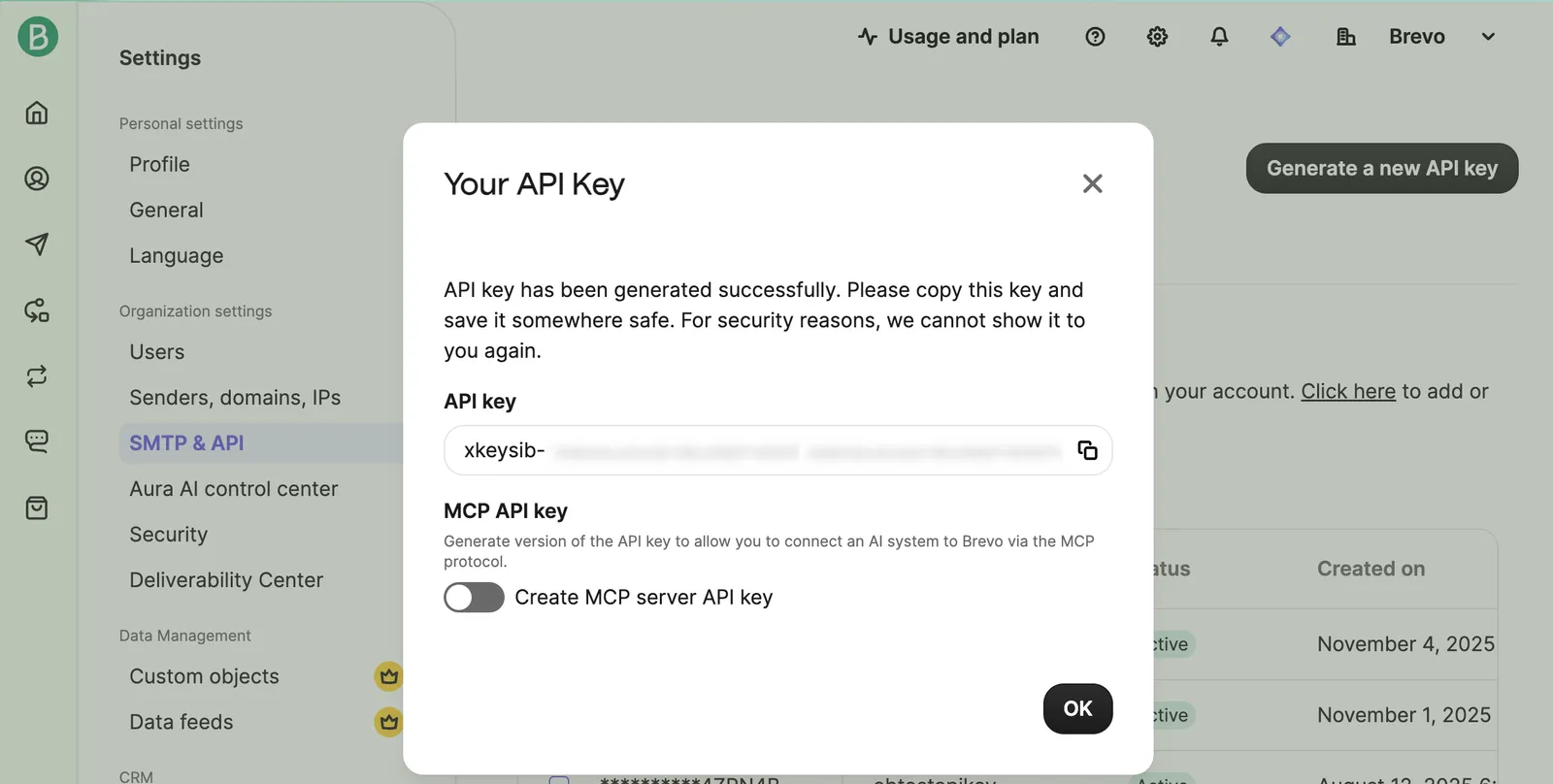
Copy and save your API key
Copy the API key immediately and store it securely. You can’t view it again after closing the dialog.
Store your API key securely. If you lose it, generate a new one. Treat API keys like passwords — never commit them to version control or share them publicly.
Whitelist your IP address (optional)
To use your API key in the developer portal playground, whitelist your current IP address. See IP security for instructions.
Use your API key
Include your API key in the api-key header for all API requests. The endpoint below validates your API key and returns your account details.
Your API key identifies your account and authorizes API access. Include it in every request to authenticate your calls.