

Connect to Cursor
Learn how to connect the Brevo API documentation to Cursor via MCP server
Overview
Connect the Brevo API documentation to Cursor using the MCP (Model Context Protocol) server. This integration enables Cursor to access Brevo’s API documentation directly within your development environment.
Prefer editing the config directly? See Agent setup.
Prerequisites
- Cursor IDE installed on your machine
- Access to the Brevo API documentation
Connect the documentation
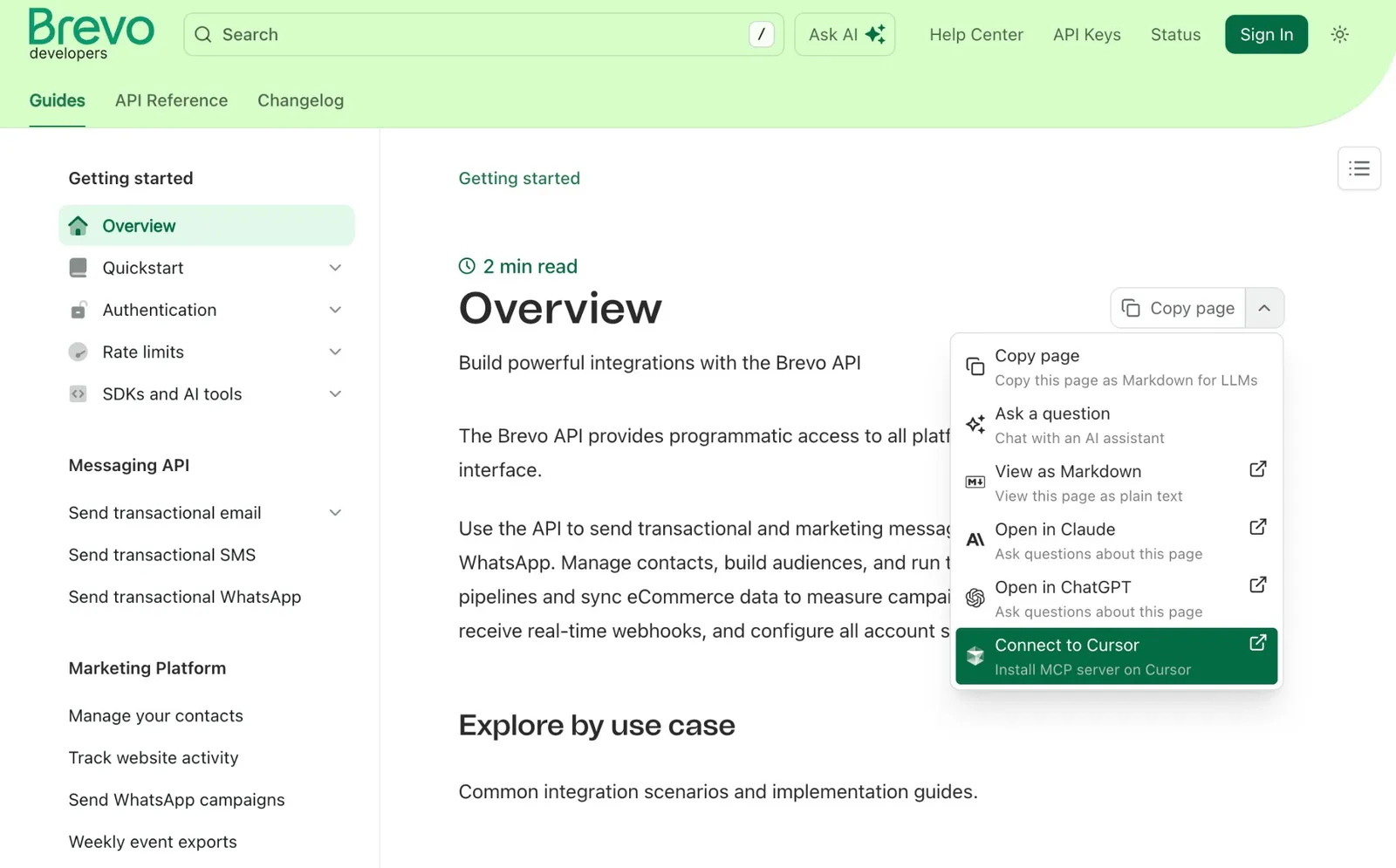
Select Connect to Cursor
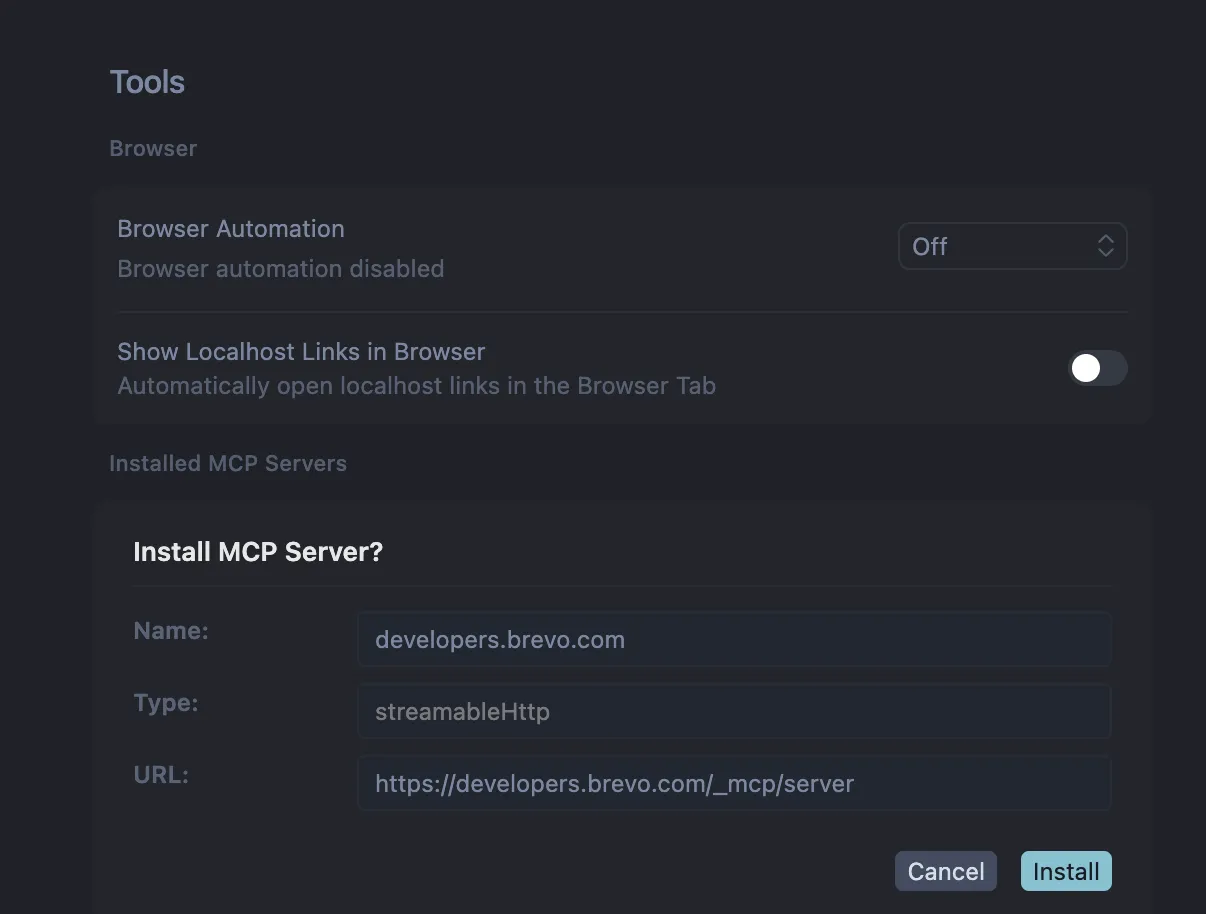
From the dropdown menu, select “Connect to Cursor”. This opens the MCP Server installation panel in Cursor Settings.
Verify the connection
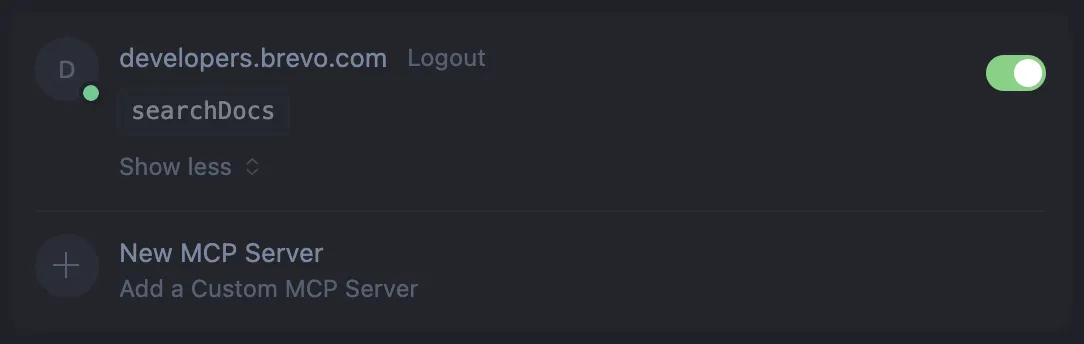
After completing these steps, Cursor can access Brevo API documentation through the MCP server. You can now use Cursor’s AI features with context from the Brevo API documentation.
Troubleshooting
If the connection isn’t working:
- Verify the MCP server toggle is enabled in Cursor Settings
- Check that Cursor has network access to
developers.brevo.com - Restart Cursor after installation if the connection doesn’t appear immediately